 Kenk.io
Guide
How to use Kenk.io.
First the quick start, then every task step by step – with pictures from web and app.
Quick start
Six steps from your first sign-in to your own AI.
-
Access and sign-in
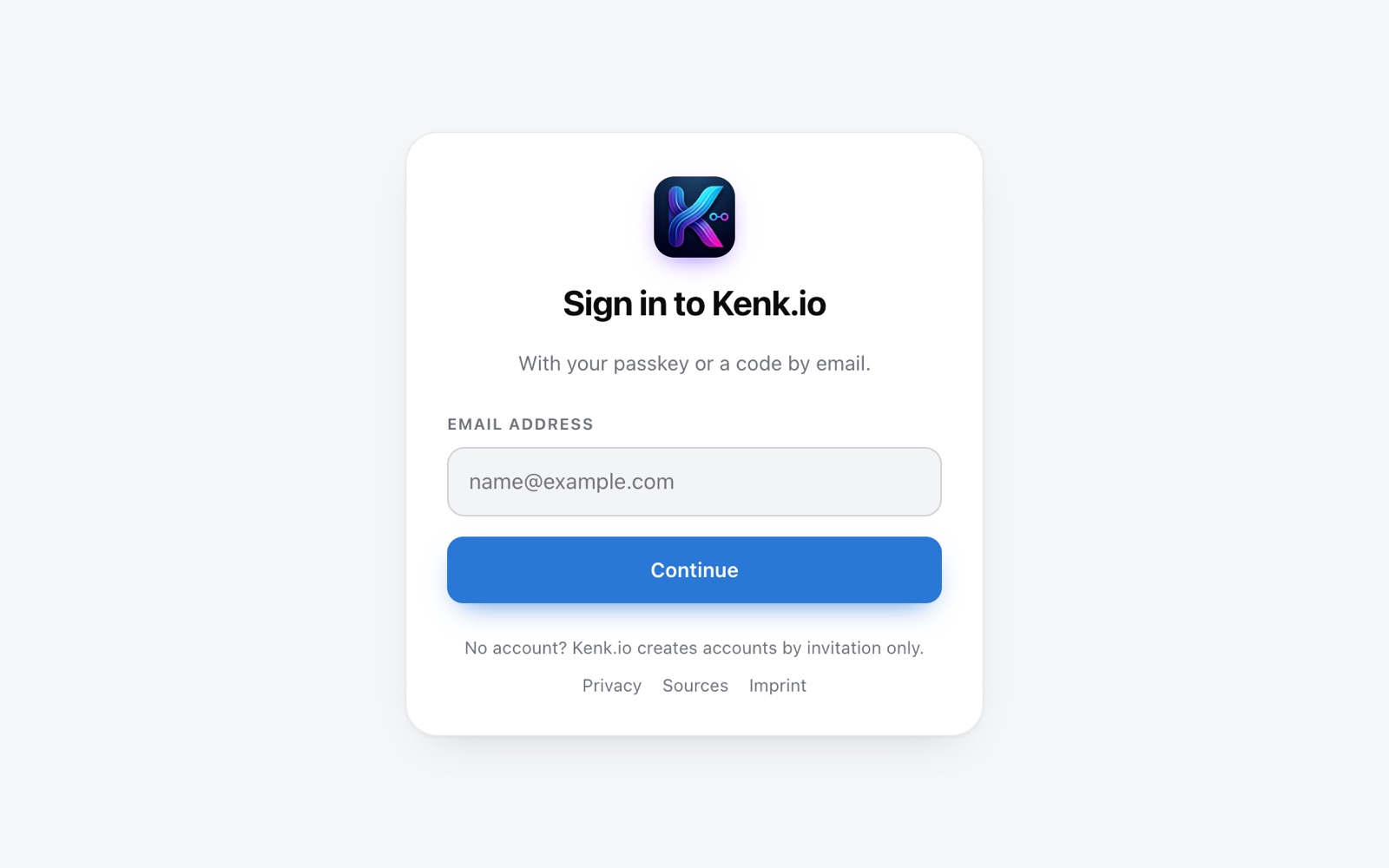
Kenk.io is currently by invitation only: get in touch via Request access – if it fits, you will get an account.
You sign in without a password – with a passkey (Face ID, Touch ID) or a code by email.
-
Set up in five steps
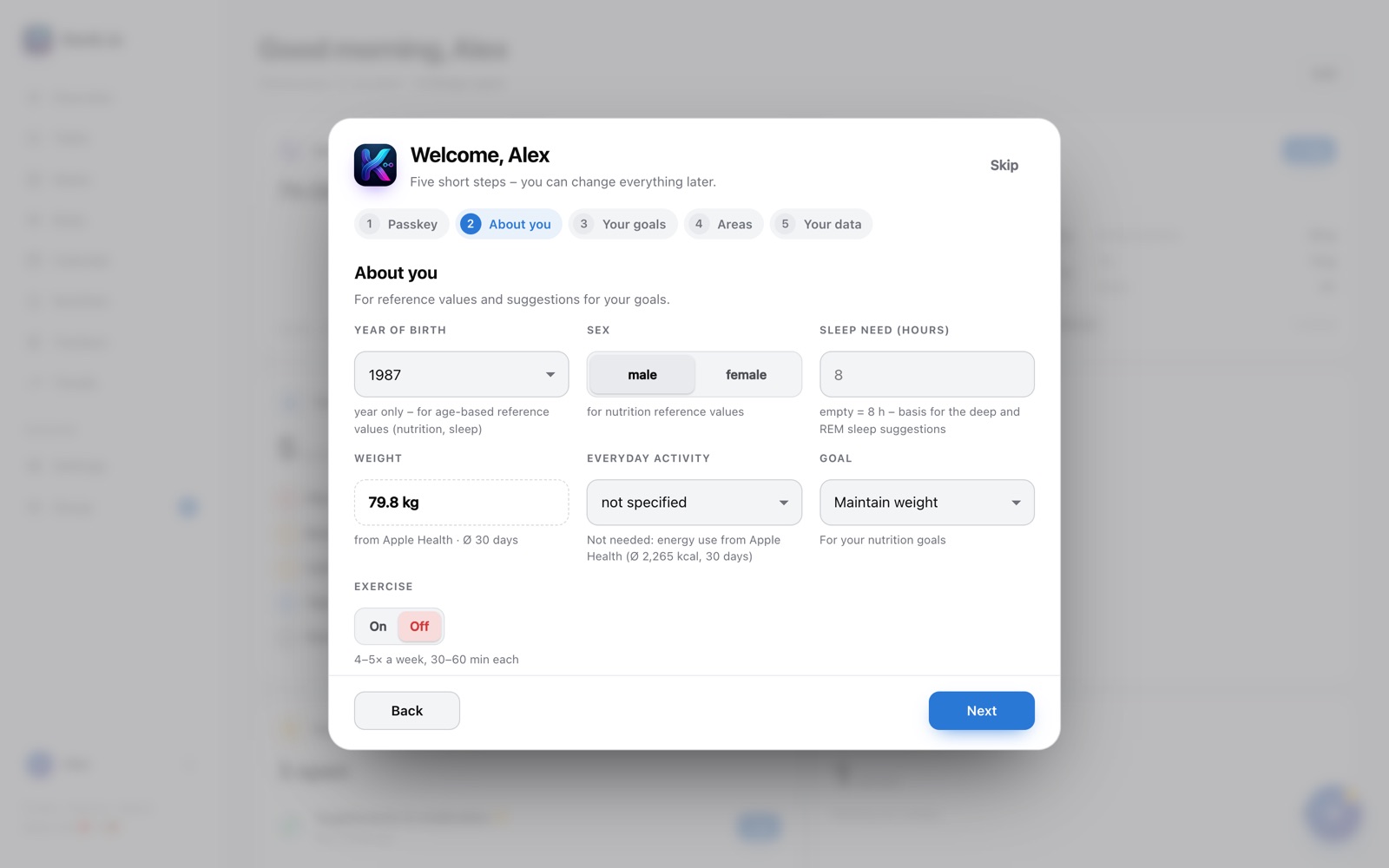
First you explicitly agree that Kenk.io may process your health data. Then setup takes you through five short steps: passkey, a few details about you, your goals, your areas and how your data comes in.
You can skip every step and change it later.
-
iPhone app and Apple Health
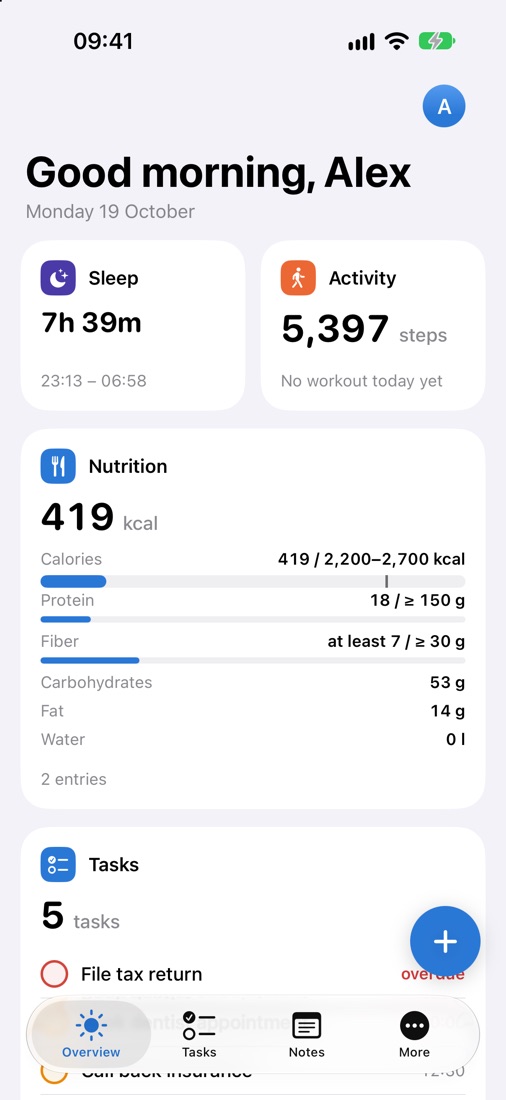
You get the iPhone app via TestFlight, Apple’s app for test versions. Sign in with the same address and allow access to Apple Health – from then on the app sends sleep, steps, heart rate and more by itself, also in the background.
You connect an Oura ring or your Google Calendar on the web under Account (see Connect).
-
Logging
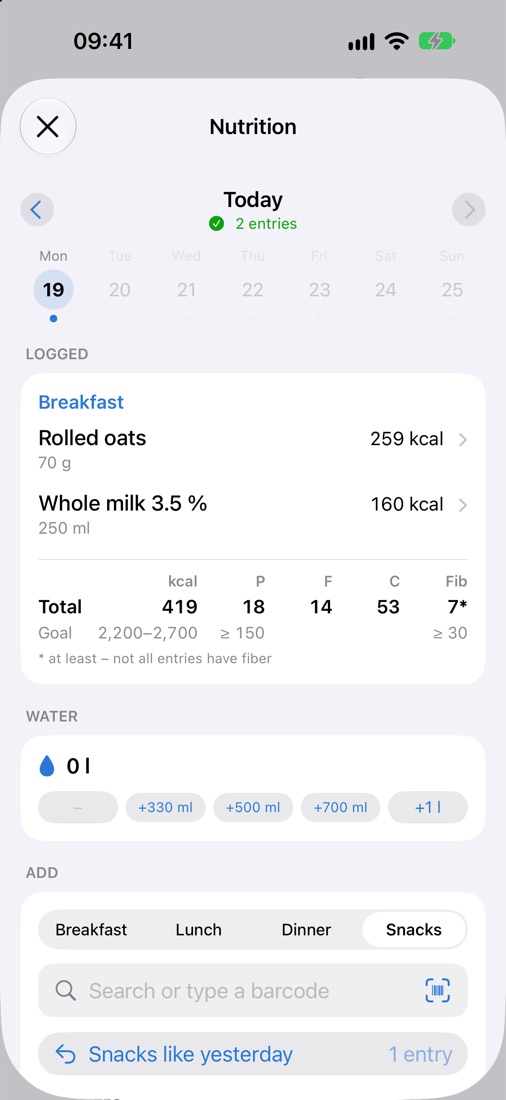
You log nutrition, supplements & medication and trackers via “+” – in the app or on the web.
Find foods by search or barcode; “like yesterday” copies a whole meal from the day before.
-
Setting goals
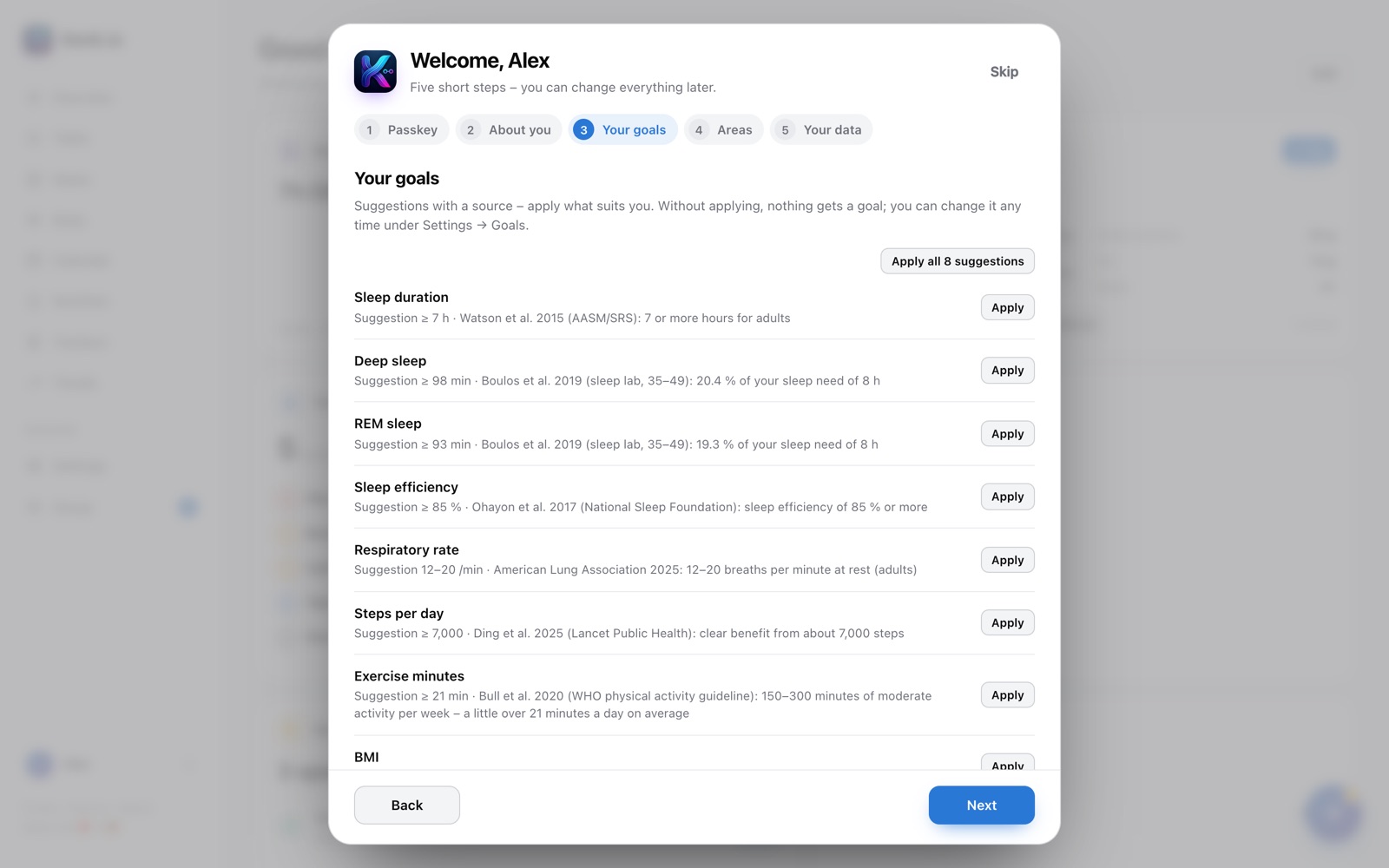
Kenk.io does not judge – it shows your values next to your own goals. Suggestions always come with a source; apply what suits you, one by one or all at once.
You can change your goals any time on the web under Settings → Goals.
-
With your AI
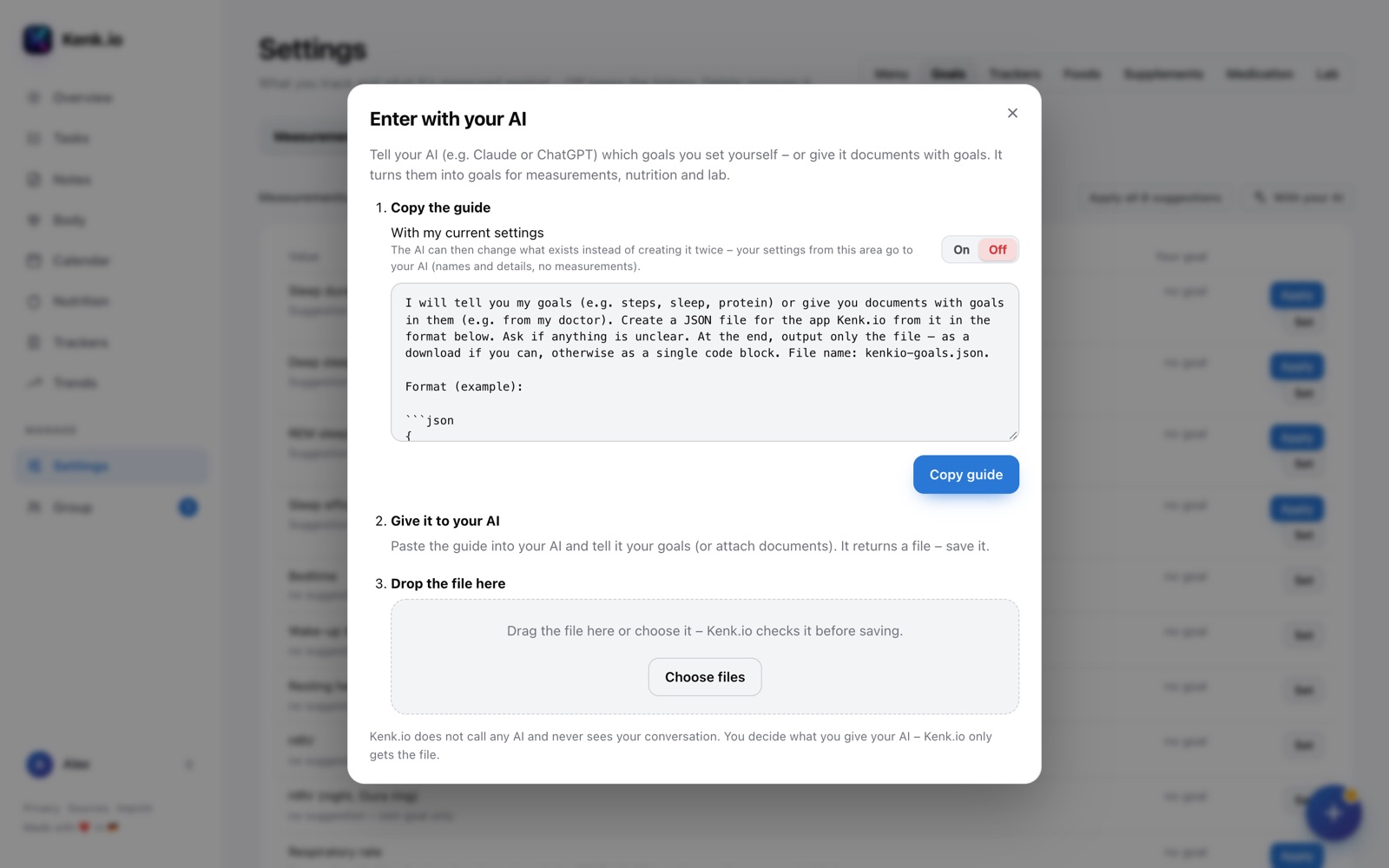
Instead of setting everything up by hand, your own AI can help, for example Claude or ChatGPT: copy the guide, give it to your AI and tell it your goals, trackers, supplements or a lab report – it turns them into a file.
You drop the file on the web. Kenk.io shows a preview and only applies it once you agree. Kenk.io itself never calls an AI.


Health
-
Creating trackers and habits
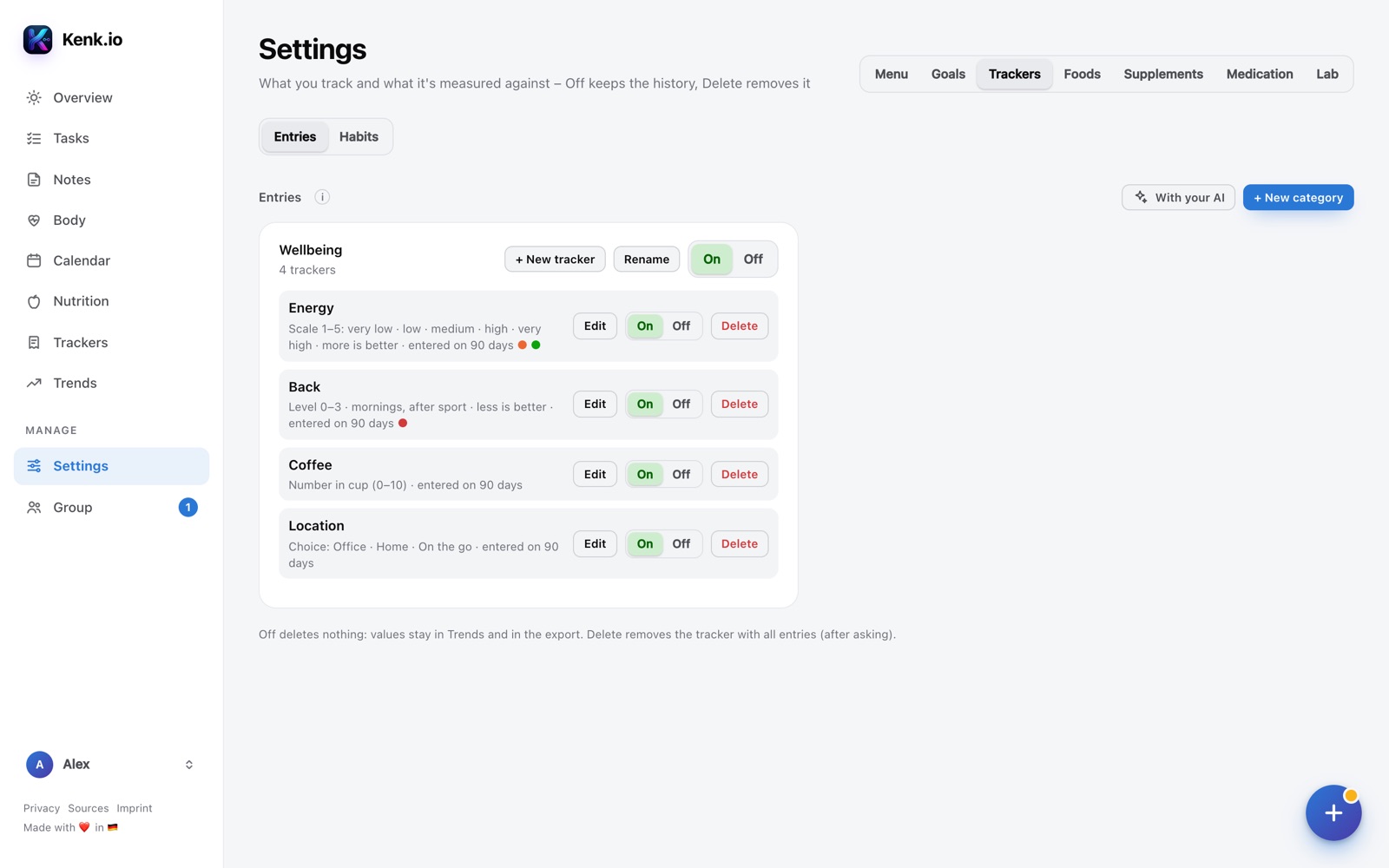
On the web under Settings → Trackers you create categories and trackers: levels, number, choice or yes/no – with your own names and colours.
Yes/no trackers live under “Habits”: tick them off or let them be detected automatically, for example from steps, workouts or nutrition. “Off” keeps all values, “Delete” removes the tracker with its entries.
-
Supplements and medication
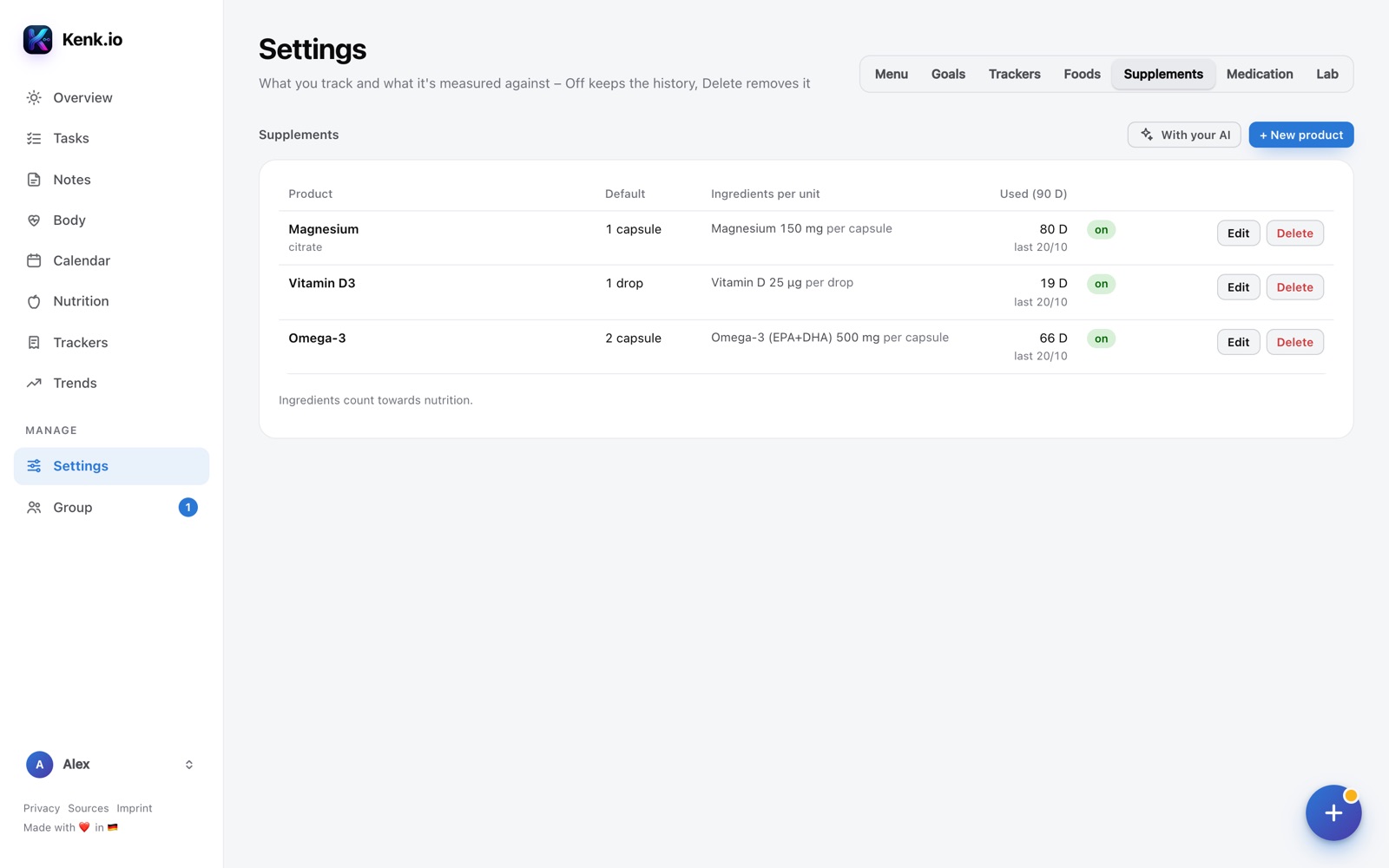
Under Settings → Supplements or Medication you add your products – with a default amount and ingredients per unit. The ingredients count towards nutrition.
You log them via “+” → Supplements & medication, in the app and on the web.
-
Adding a lab report
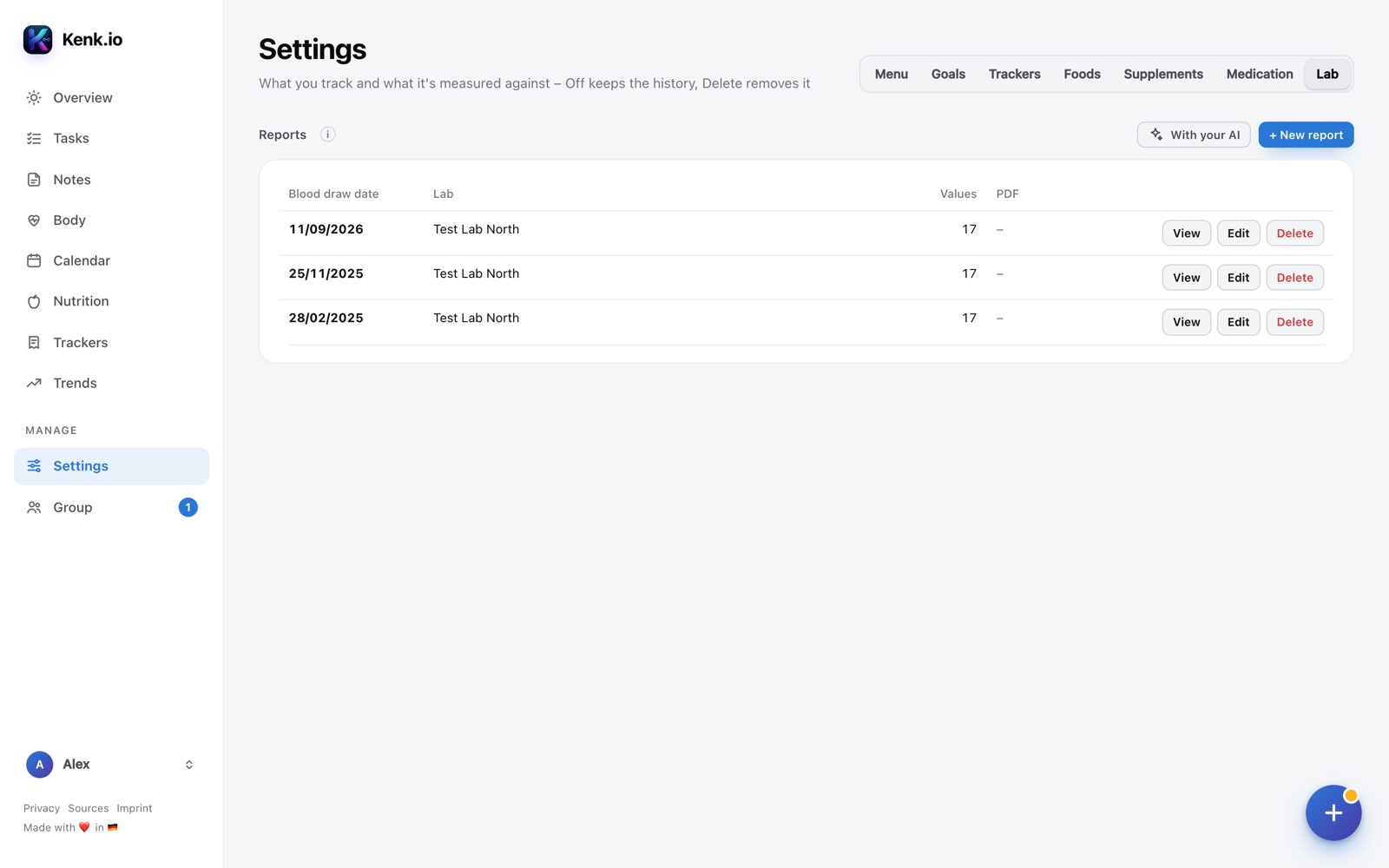
Under Settings → Lab via “+ New report”: date, lab, PDF and the values as printed, including the reference. It is quicker “With your AI”: give it the PDF, get a file back, drop it in.
You see everything under Body → Lab – on the web and in the app.
-
Connecting an Oura ring and Google Calendar
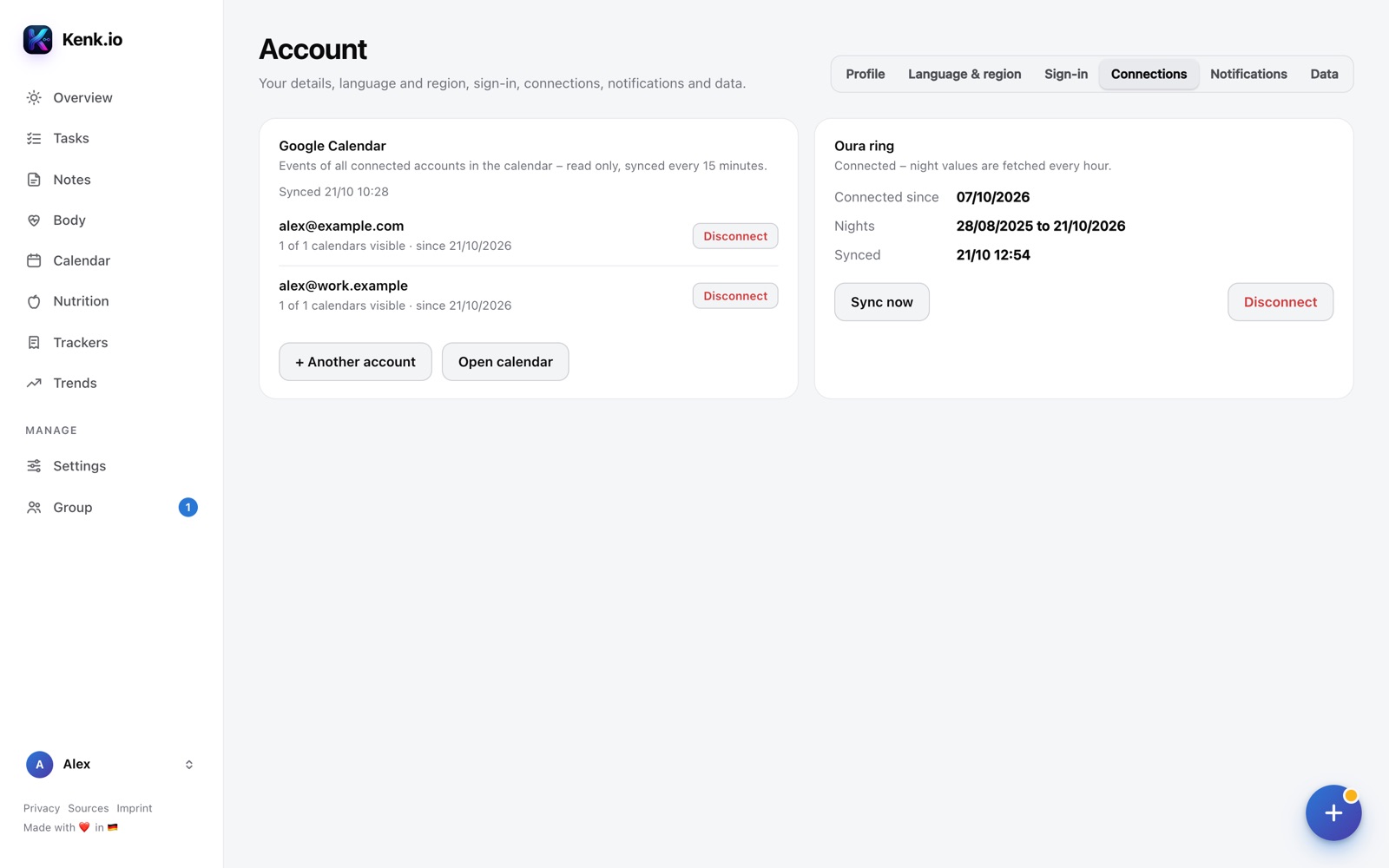
On the web under Account → Connections: connect Google Calendar with one or more accounts – read only, synced every 15 minutes. Connect the Oura ring – then HRV, heart rate and temperature of the night come from the ring.
“Disconnect” deletes the copy at Kenk.io.


Organisation
-
Tasks and lists
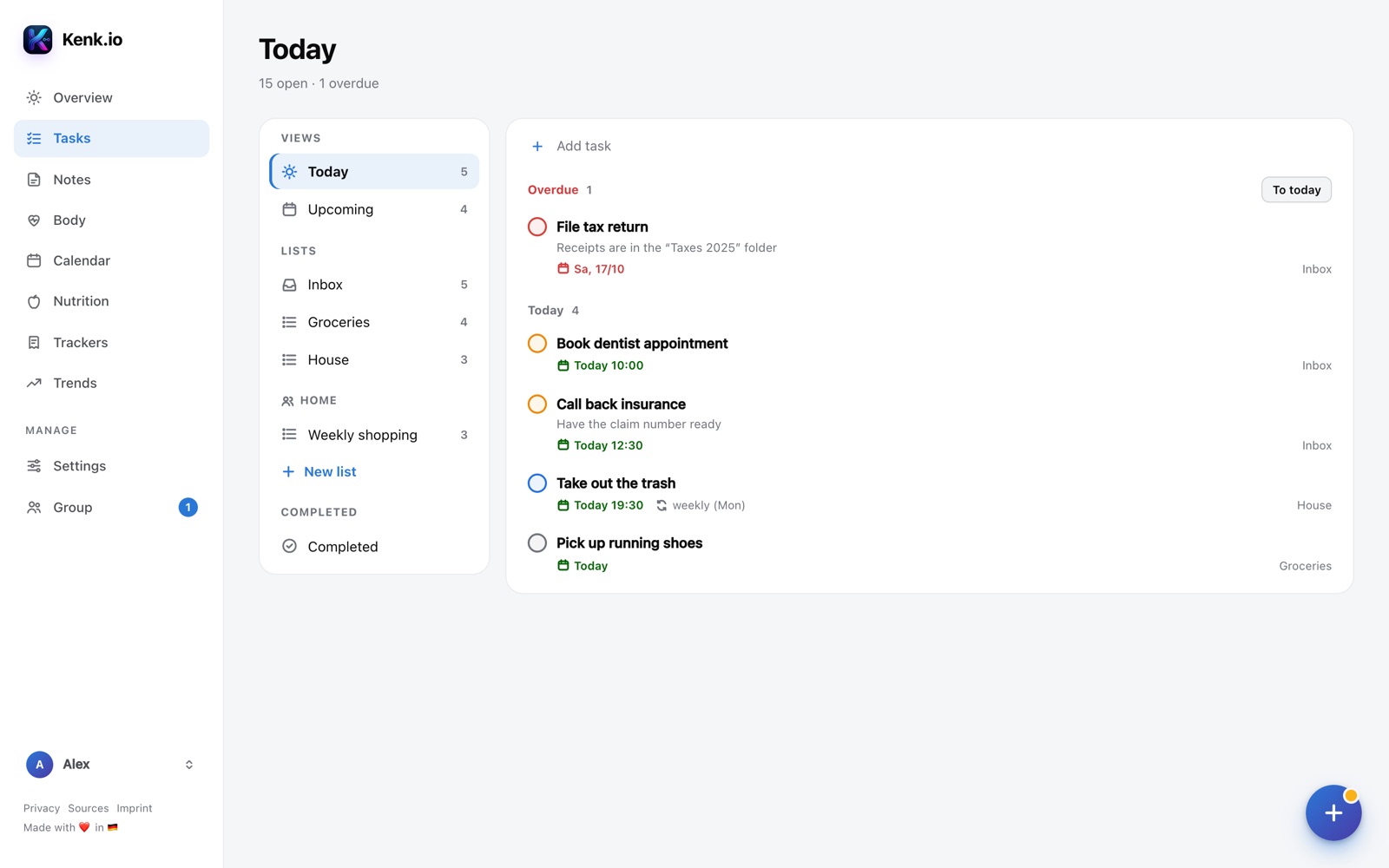
Tasks with due date, time, repeat and reminder; on the left the views and your lists. Share a list with a group if you like – then everyone can make changes and assign tasks.
The search at the top finds tasks across all lists.
-
Notes and folders
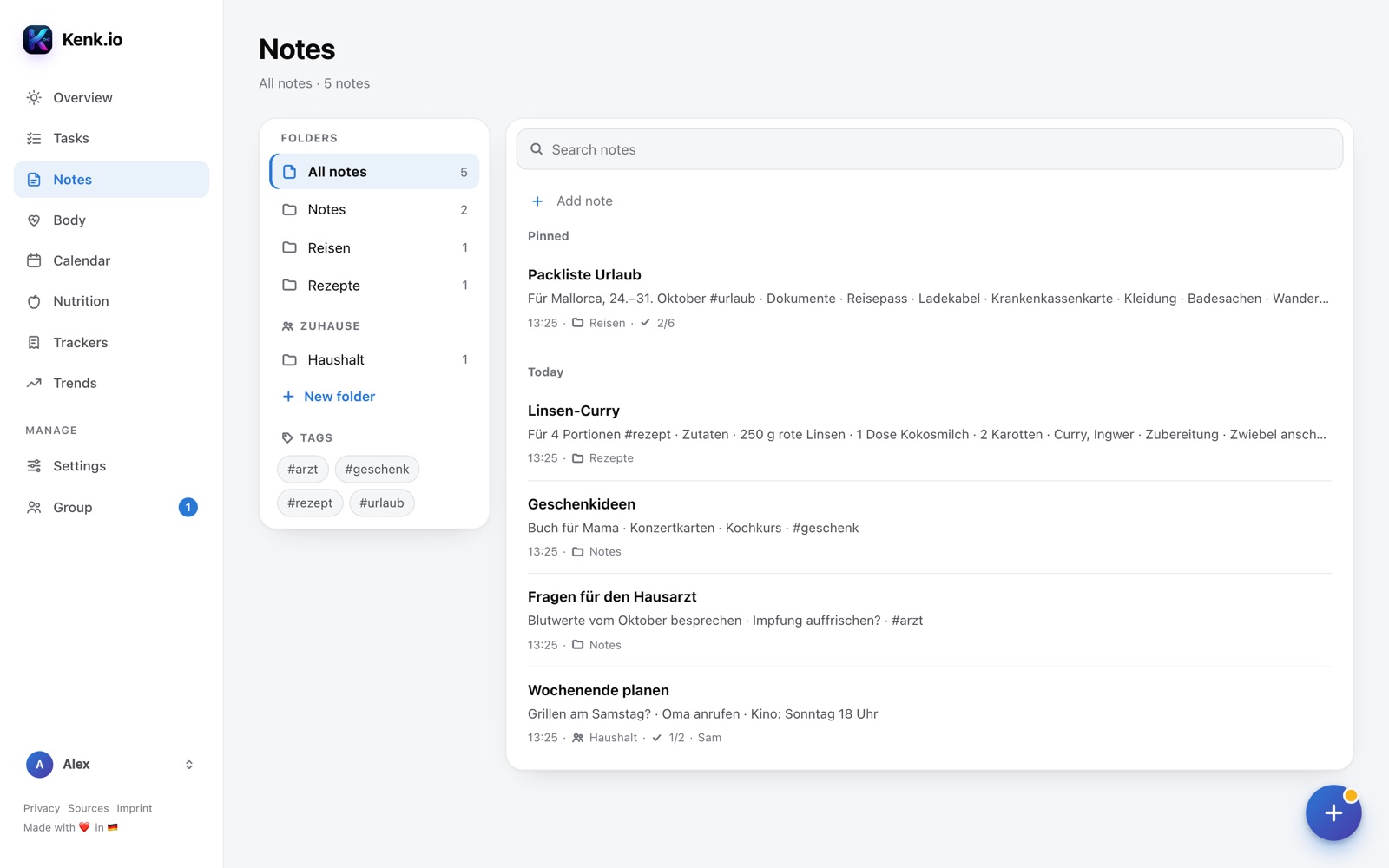
The first line is the title; you write lists, checkboxes and headings directly or via the format buttons. Tags as #word in the text.
You share folders with a group – like lists for tasks.
-
Calendar
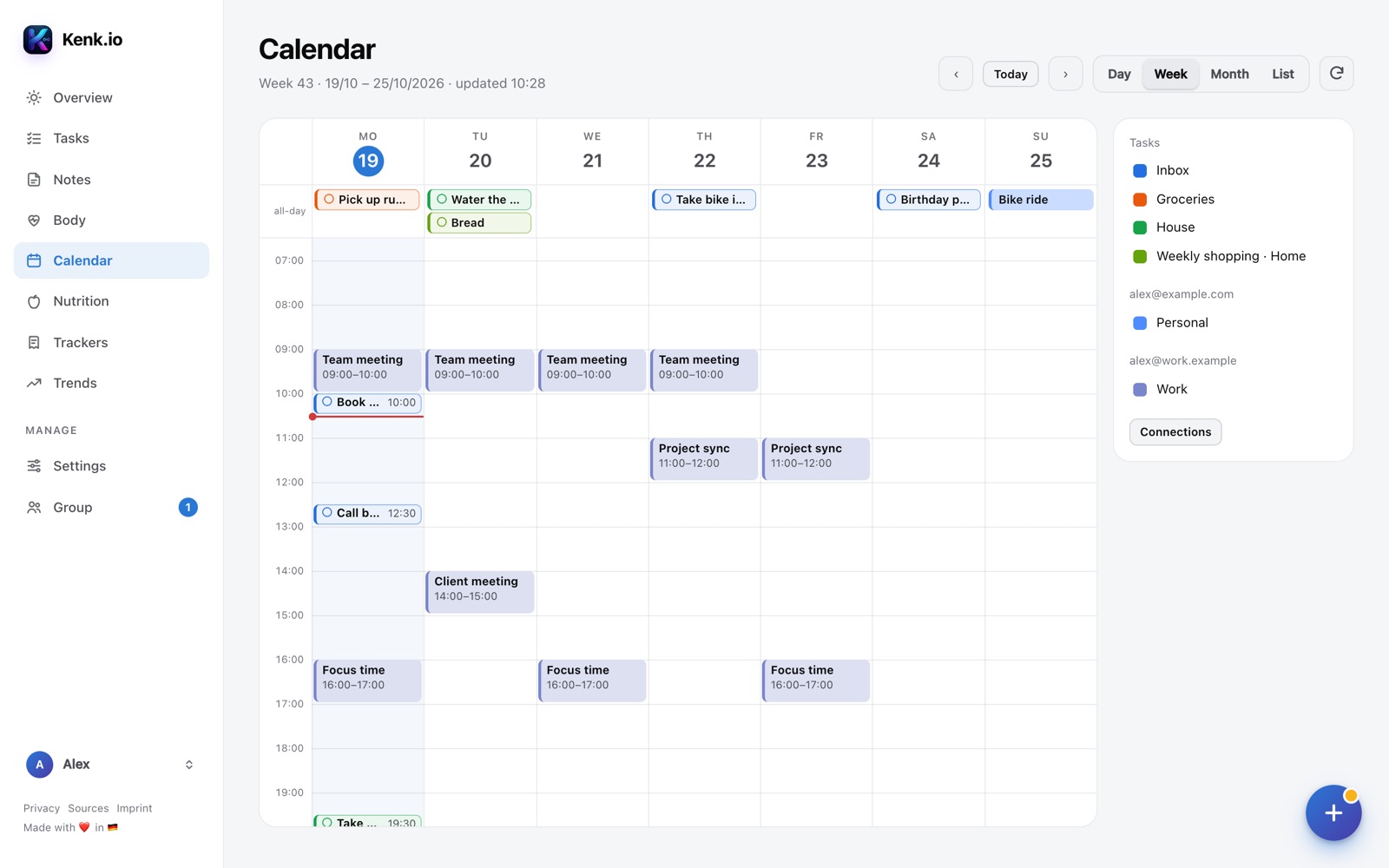
Events from Google and dated tasks appear together – as day, week, month or list. You show and hide calendars and task lists.
You edit events in Google; Kenk.io syncs.


Sharing
-
Creating a group and sharing
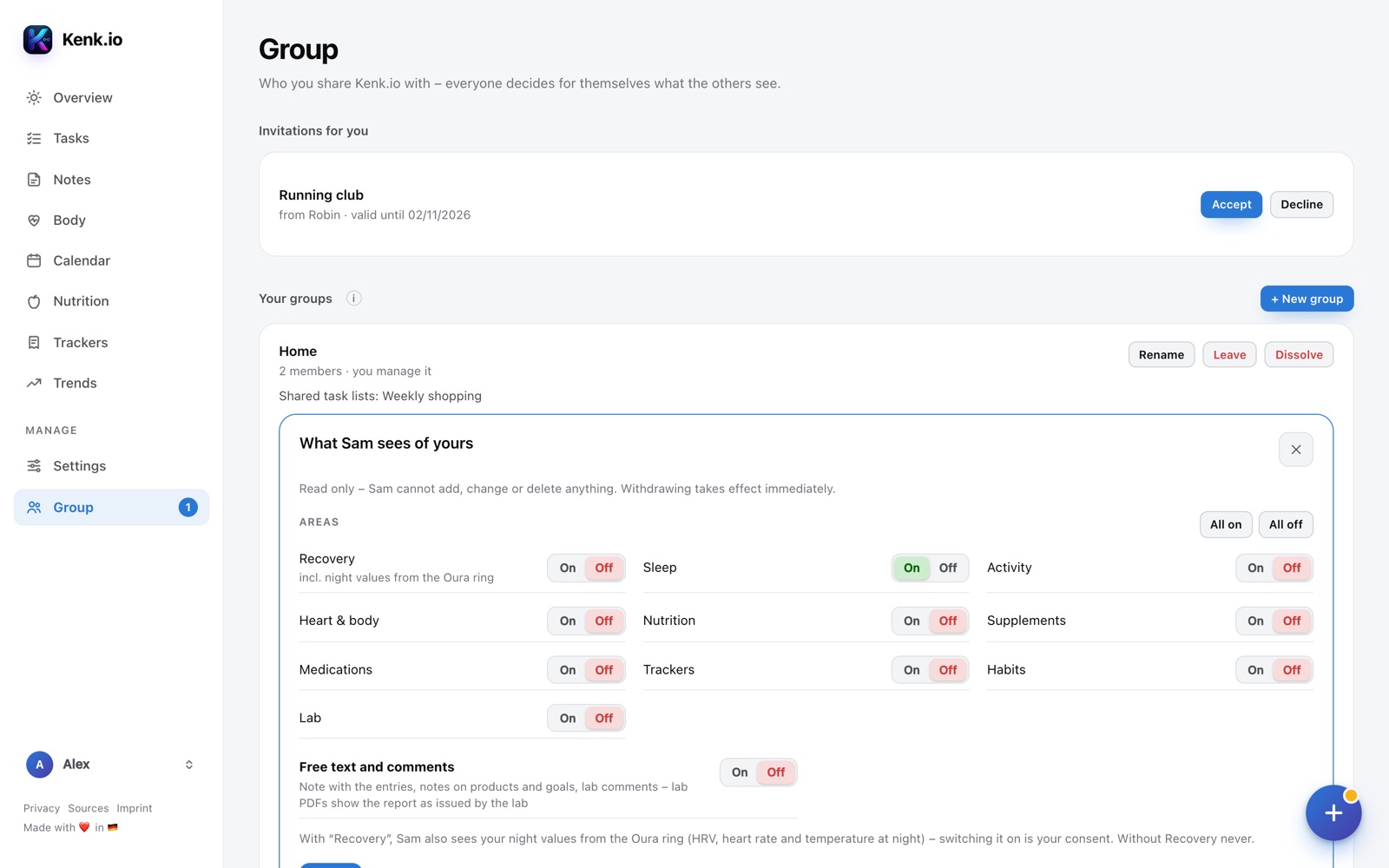
On the web under Group you create a group and invite people by email. Per person and area you choose what they may see – read only, and you can take it back any time.
Oura night values are only included if you share “Recovery”.
-
Viewing others
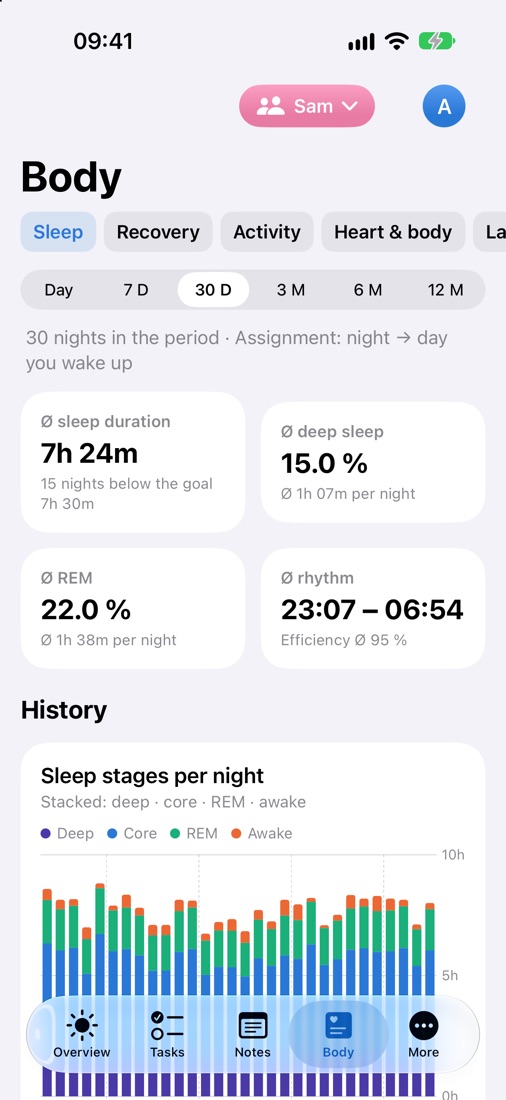
If someone has shared something with you, switch to that person at the top via “Me ▾” – in the app and on the web, read only.
“Me” in the same menu takes you back to your own data.


Your data
-
Customising the overview
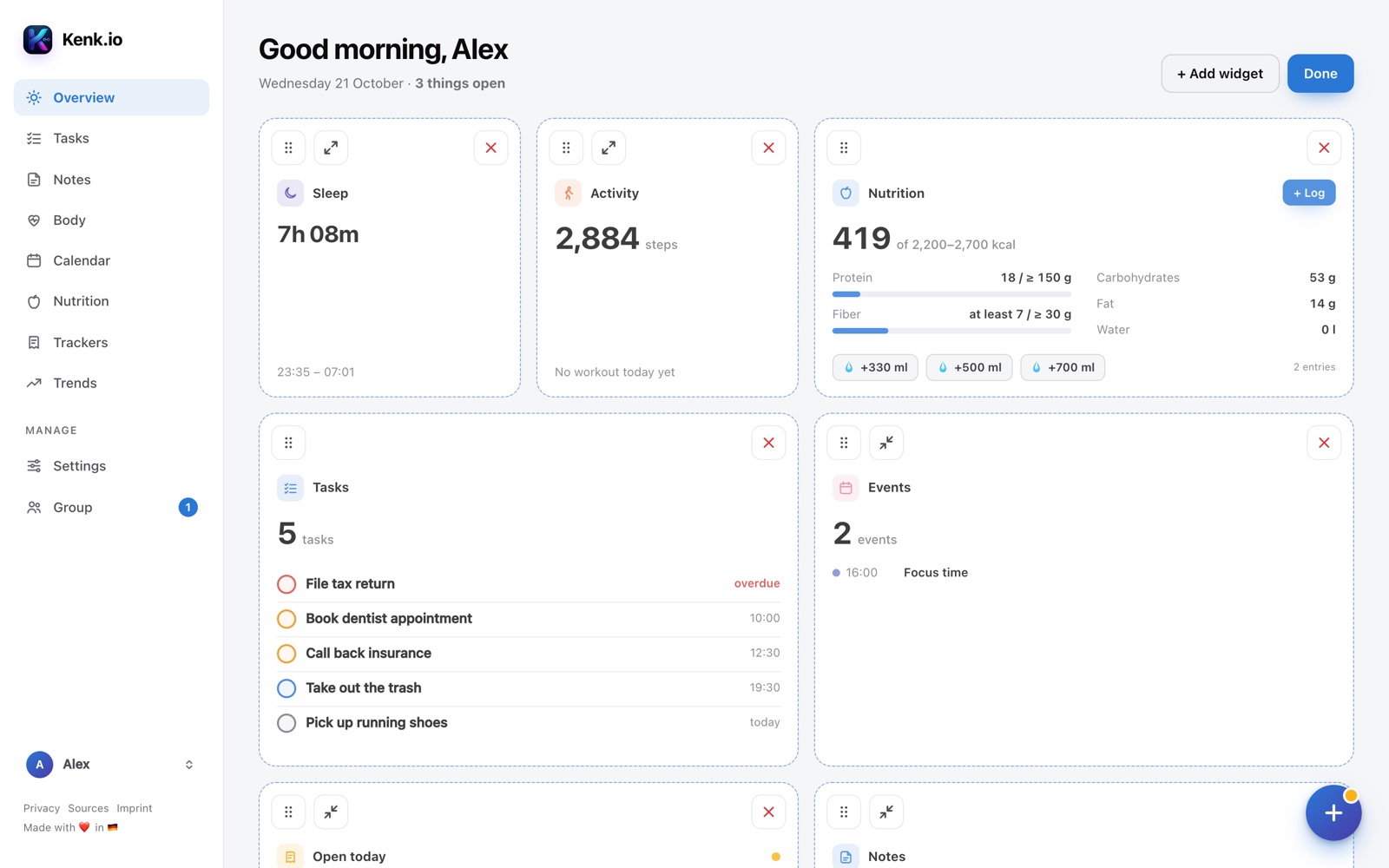
On the overview tap “Edit”: move widgets, switch between small and wide, remove them or add more via “+ Add widget”. In the app you long-press instead.
The layout applies to web and app.
-
Report, export and deleting your account
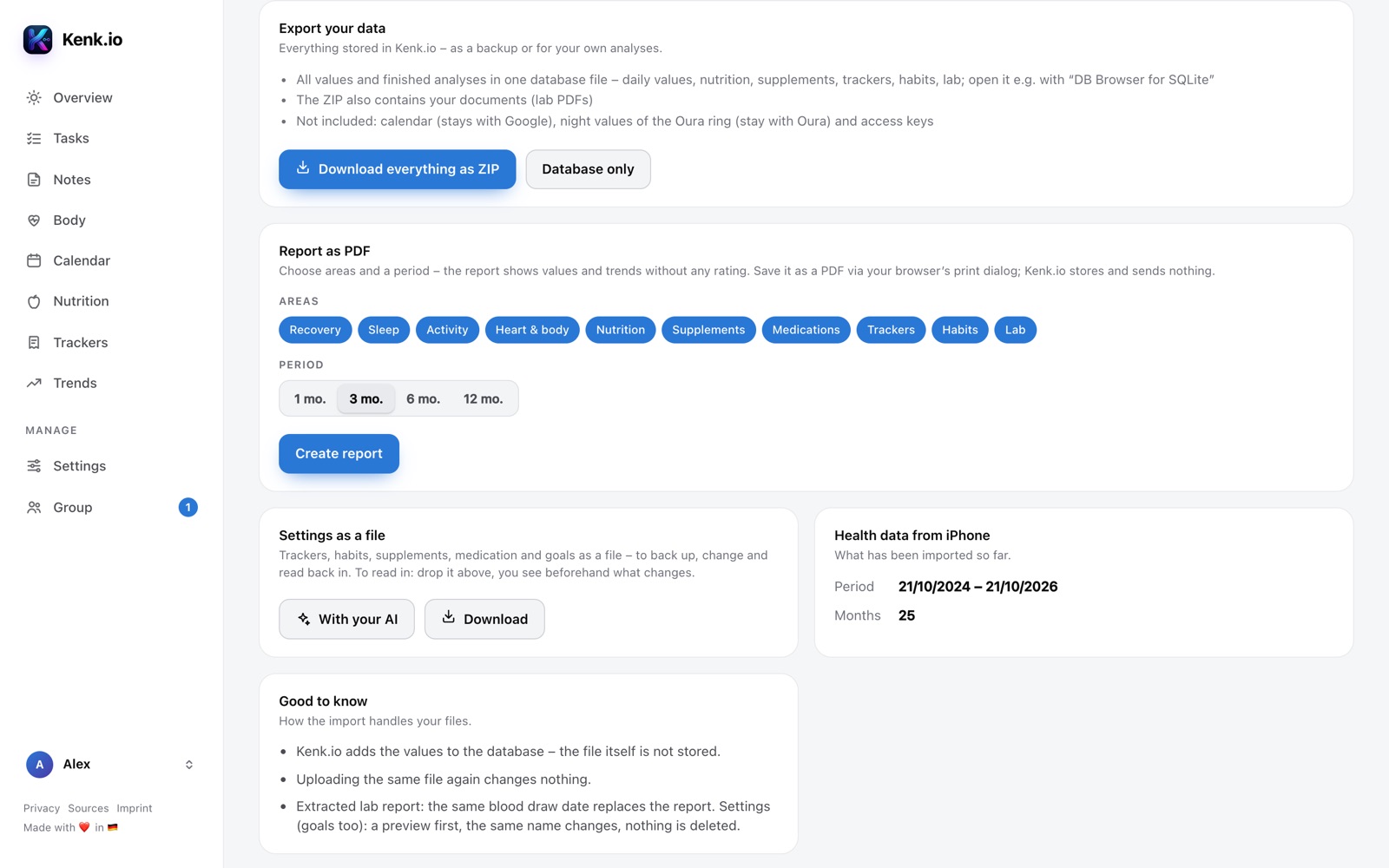
Under Account → Data: report as PDF with areas and period – also in the app in your profile. Download everything as a ZIP or just the database.
At the very bottom is “Delete account and all data” – it removes everything.


Web or app?
Both show the same data, and you can log in both. A few things only work in one place:
- Settings: goals, trackers, foods, supplements and medication
- Adding lab reports
- With your AI
- Managing groups and permissions
- Connecting an Oura ring and Google Calendar
- Downloading your data and deleting your account
- Values from Apple Health
- Notifications
- App lock with Face ID
- Scanning barcodes with the camera